Showing posts with label Web 2.0 tools. Show all posts

Friday, November 4, 2016

Making digital worksheets with Edueto

I have started to dabble a bit in digital worksheets as ways to assess my students.  I have been trying to come up with some different ways to do things.  I noticed on the AASL Best Websites of 2016, a link for a free digital worksheet site called Edueto. I checked it out to see if it was something I would use and I believe it is.

The site has a library of publicly shared worksheets that are sorted by content, age, country and grade.  If you find one you like, you can copy it to your personal worksheet collection.  You can also make your own worksheets fairly easily. There are many options available for the worksheets you make, including math equations and fill in the blank. Even foreign language accents are available. There is a capability of making a class list and assigning work to the students and classes.

I felt this was a fairly easy site to use and I think it will make some of my daily work a little easier.


Friday, April 29, 2016

Educaplay Learning Resources tool

Not long ago, a tweet passed through my feed from SimpleK12, and as you probably have seen,  I am a big fan of SimpleK12.  They offer so many wonderful things to educators.  The feed was a blog post with 50+ free tech tools for your classroom.  I was hooked.  I started checking them out and decided I am going to do several posts about some of them.   We are starting today with a post about EDUCAPLAY which is a multimedia resource tool.

Educaplay is a site that allows users to create multimedia games and tools to use as a review tool.  You can create a free account to use and also search a directory of other people's files.  This site reminded me a little of Quia, which I used to use when I was teaching as a review tool.  As my followers know, I am too cheap to buy tools, and this one is a freebie.


Creating an account was easy, so was making an activity. I noticed you can select your country and then see specific grade levels and specific content to cover in the activity.  There are also tutorial videos available for each activity you use.  When you make the activities, you can alternate the method of presenting the materials-  visual, text or audio.  (Awesome tool for a foreign language teacher!)

I think this is a pretty good tool for the classroom teacher of all levels.  Because there are many methods of presenting information, it will benefit many.  I think, too, it could be embedded into some LMS as well.

Friday, July 17, 2015

Make a free video fast: Stupeflix

I have been a frequent user of Animoto for quite some time.  I use it to do my new releases videos for the library and for my classroom.  It's easy to use and doesn't take much time.  I found another site that does a very similar thing- Stupeflix.  Stupeflix lets videos and images merge to a video using music.


I made a test video, and it went really fast.  I added photos and then I selected music from the website's built in library.  It is very similar to the music on Animoto.  Photos can be uploaded from computer, caught from the webcam or pulled from an online storage (flickr, instagram)

There is a free version as well as a paid version.  I did the free version, got a minute of video which for a new releases presentation is sufficient.  I felt it was a fairly easy to use program as well.  Simply create an account, and make a free video.   Once you do that, you can actually send it out to Youtube, Vimeo and others.

It seems like a pretty easy site to use.  It just took me a few seconds to make a video.  It is worth looking at.
 

Tuesday, February 10, 2015

Finding Primary Sources: Part Three

The last few posts have focused on Primary Sources for a paper.  Because I am such a nerd when it comes to research and I feel that the most accurate information is by far the best, I feel this topic is one to address over several posts.  I continue with three new places to visit to locate primary sources.

The Avalon Project:  Yale Law has established a large database dating back to the 4000 BC.  Most of the focus is historical and legal, but, it has a lot of materials that a classroom teacher can access.   You are going to find more documents in the 1800s and beyond, but there is a collection of material that can be used for a paper or project.

Spartacus Educational is a collection of documents about specific people and events throughout history. There are specific events listed in the database, but you can also connect to the Index and get a visual link to several topics, including the World Wars, General American History, British History and Biographies.  This site is developed by a Brit, so the text might be written with British flair, (for example, the History of Football isn’t what we American’s know as football, but soccer) it does covers a lot of information.


Fordham University has created a large database of full text sources that is accessible free of charge.  The content  includes a lot of information about Western Civilization, Religion, Revolutions both foreign and domestic.  When you find the topic of interest, you click it and it takes you to a large list of links that relate.  Some topics have hundreds of items available to use for research.   The information is both internal on Fordham’s site as well as external on the web.  Either way, it offers a lot of free information for a paper or research project.


Tuesday, February 3, 2015

Finding Primary Sources: Part Two

Last week, I posted a brief article about finding primary sources for free.   With the drive to go One to One in school and the push to back away from traditional textbooks, using digital primary sources is a fantastic way of getting the information you need online.

In part one, I mentioned the Library of Congress, The National Archives and DocsTeach.   Let's look at a few other sites to use for primary source searching.


First of all, Historypin.  History pin is Pinterest for primary sources.  It features a series of projects loaded with images from all over the world.  It's a global collection of materials that people don't normally see.   There are projects, basically tagboards, loaded with images that relate.  People add them to the community as a reference.  When the board is opened, a map appears and community members pin an image, document, etc, to the map.  It's a great idea, but it seems to be early in it's life cycle so it's continuing to grow.   I would recommend this for Middle School age students and up.  Some of the visuals may be difficult for a younger child to understand. (Holocaust, Genocide, etc.)

Second off, let's take a look at the Digital Public Library of America.   This site is a huge collection of images, documents and artifacts that anyone can access free. Per their website: "The DPLA  brings these different viewpoints, experiences, and collections together in a single platform and portal, providing open and coherent access to our society’s digitized cultural heritage." The site pulls information from libraries all over North America into one main location.   It is loaded with things are it seems to be fairly easy to use. It has an exhibitions tab that focus on a specific topic.  Within that exhibitions, users can see a large amount of information that pertains to a topic.  It's a great way to get a lot of information.


Finally, the Life Magazine Photo Archive.  Life Magazine's photo collection is by far one of the most vast photo collections out there with all sorts of images that can lead to writing prompts, research topics and even more. The page has been taken over by google, but the images are sorted by dates and as well as topics. They go back all the way to the 1860s. 


Tuesday, January 27, 2015

Locating primary sources: Part One

One of the goals of both teachers and school library media specialists is to help students locate sources for papers and primary sources are one of the best to offer a researcher.

There are several digital tools out there that help. 

First of all, the Library of Congress.  This site has an abundance of information about everything.  It is the largest online collection of everything from documents to images.  It is totally free and covers just about every subject you look for.  There are also external links to other sites controlled by the government, including the Library of Congress Card Catalog, The US Copyright office and the US Congress.  Because it's so large, you may find it a bit overwhelming to investigate, but, you will find primary sources to use for any paper or research you are doing.  The fact that it is free makes it all the while.

Second and Third, the National Archives and it's counterpart, DocsTeach. 

The National Archives features documents, genealogy and veteran's service records.  It is geared toward older students, perhaps grades 6 and up, but if students are working on a paper about genealogy, military history, and a focus on specific documents, this is the place to go.  Users can use an online database as well as research ancestory.  The site offers users a series of explanations about using the Archives and how to do research.  


DocsTeach features tools for teachers to provide students to encourage critical thinking and advanced research skills.  Both sites are free to use.  If you are in a district that is migrating away from textbook adoption and relying on personal creation of materials, this is a great place to go and find the materials you need.   The activities can be a bit more challenging.  Students younger than middle school will probably find it impossible to use. 


Friday, August 8, 2014

Sites for Writing: Hemingwayapp


Have you asked students hand in  a paper with both active and passive voices, incorrect usage of adverbs, and maybe some long sentences that could be split?  There is a website out there that evaluates your writing and helps determine readability, voice and complexity of sentences.  It is Hemingwayapp.  I learned about the site at my TLC training and I see it having a lot of purpose for staff to get kids to write to their potential.

Often, a paper students hand in a paper with sentences that don't make sense and are difficult to follow.   With this program, you copy the text you are working on from your document file and paste it in the app.  Click a button and it determines what the writer needs to make it a better document.  It is also an easier way to count characters and words for those papers that have a minimum length.

I think teachers of all content areas would benefit from using this app.  It will also help students become more fluid writers.  It is a simple step to add to the writing process.

Tuesday, August 5, 2014

Using Videonot.es to Flip

As I was taking my training for technology leadership certification, I was introduced to a site called Videonot.es.   I learned quickly that a teacher who is flipping a class, or who wants to script can use this program and pull videos from YouTube and Khan, just to name a few.   A student who needs extra help can use this quickly and efficiently to create great notes for themselves.   
One thing I really like about this is the link to GoogleDrive.  Anything you create saves in your Drive to be used later for more reference.  If you are in a class that has a comprehensive exam, you can refer to these flipped videos as a study tool. 

It could be used by numerous grade levels, even staff could use it for professional development notes.

When we did our training for TLC, we used this site to take notes and it was very helpful and useful.  I can see a teacher who is trying to flip a class use this to be very successful. Kids can benefit a lot, and if you are in a GAFE school, it's even easier.   I suggest you look into it.

Friday, August 1, 2014

Cool presentations: Animoto

As a library media specialist, part of my job is to make my patrons as aware as possible of everything I can about the library at my school.  I make a lot of videos for the teachers and students about everything.  I make tutorials, new release videos and videos about what we have for them.   One program I use often to make videos is Animoto.  I have learned that Animoto is awesome and easy and I use it weekly to make my new release videos.  It's fast and fun and I think every teacher out there should know about this program because you can put together something for any class.

Animoto sets images and text to music.  It contains a set of royalty free music, simple text inserts and the capability of linking to several graphic sites and storage sites (such as dropbox and flickr.)  I have learned, too, that teachers can get a free educational account that allows for longer videos (the typical free video is 30 seconds, but with the educational version, the videos are as long as the songs you choose.)

It's very easy to use and the fact that the end result can be exported to YouTube.  I embed the YouTube videos right into my library blog.  I also post the links to the school Facebook account so the videos reach as many people as possible.  I love how simple the program is to use.  It doesn't take much to learn and every teacher can put this into their bag of tricks and use it to make something awesome.

Tuesday, July 29, 2014

Presentations without PowerPoint: Powtoon

Someone posted an article about tools that can be used to as a means of establishing a presentation. Powtoon was one of the sites listed.  I had to check it out.  I LOVE it.  I have finally found a free site to make really nice, crisp presentations that can be published directly to YouTube, and it's really easy.

I created my free account, which can link to Google+, Facebook or LinkedIn.  You can also use an email account to establish it.  It has you determine if you are a student or a teacher, which I liked.  I established a teacher account, so I am not sure what appears on the student side.  I made a quick thirty second presentation in about five minutes.  It was easy and there were a lot of options available to make a nice slideshow.  It was quick, simple and definitely something I would use again to make some slides for the library.  I can use it for tutorials, new release videos (I use Animoto now, but maybe I can mix it up and use this as an alternative.) I think the kids would enjoy seeing the presentations and would benefit from them.

I have a few teachers at my school who have students do PowerPoint presentations.  I am going to share this option with them because I think the kids will enjoy the many options it has to offer.  I also think the teachers will enjoy seeing the presentations because they are different than the same old same old.  I think the teachers will appreciate its ease of use and the students will be able to figure it out without a lot of help.

This is a very simple, free product for the kids and staff to use.  I hope some of them try it out.


Friday, July 25, 2014

Presentations without PowerPoint: Thinglink

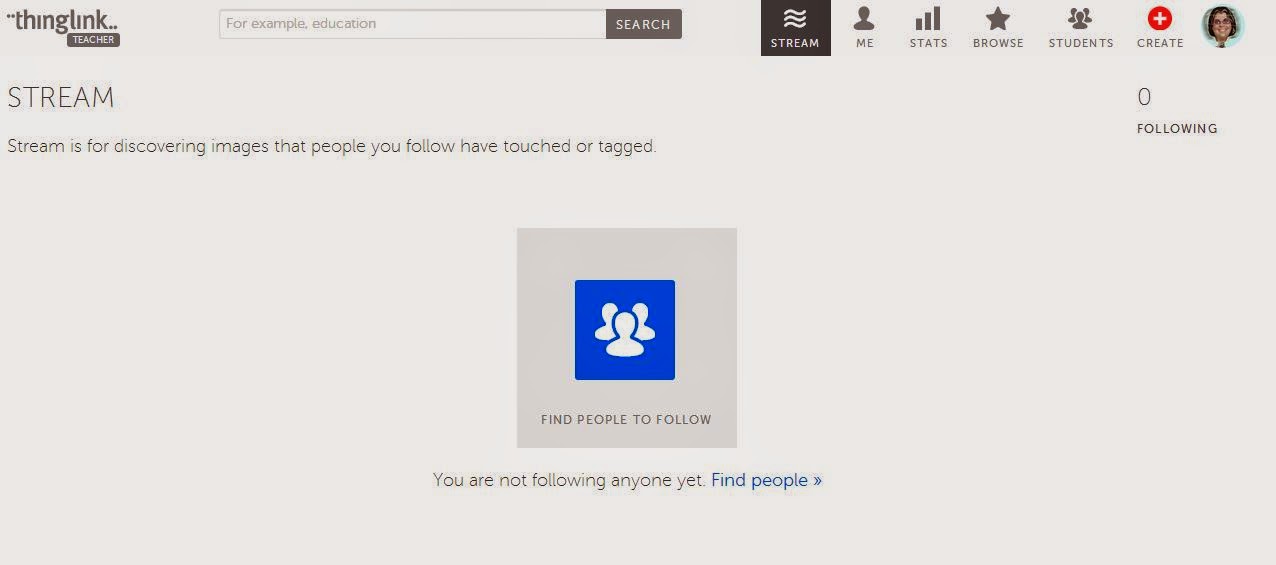
For years, PowerPoint has been the go to program for making presentations, but, there are many other programs out there that can be used to make presentations, Thinglink is one of them. I decided to build a virtual library with Thinglink and identify all of my genre sections and share what sort of materials are there.

A colleague shared that her teachers are using Thinglink to do interactive presentations about Historical events.  Thinglink lets you embed video, text and more images.  It's accessible by a simple click of a button. The educational version, which is free, actually lets teachers establish groups and add students so kids work is within the teacher's channel.  What a fantastic opportunity to change up your presentations.

Imagine this:   A teacher does a PowerPoint to present a specific topic.  On that PowerPoint, there is a video, some text, some images and a timeline.  Wouldn't it be awesome to embed a Thinglink into your website that contains the same information and let students refer to that?  You can even embed a worksheet or a project into the actual image.

I can see Thinglink being used for all sorts of projects- There is so much that can be done with it. The images you see here are the featured links of the day.

Tuesday, July 22, 2014

Presentations without PowerPoint: Piktochart


Part of being a Library Media Specialist is the need for infographics and presentations to share with staff and administration.   I have discovered that piktochart is an awesome way to make really nice infographics and presentations alike.

A colleague of mine made a series of presentations to share with her staff using this program.  They were nice and very user friendly.   It's a fast way to present any form of information.

Because it is an infographic, it could be used also to share data.  It doesn't have to be just a presentation.  There are a few options, presentaboard, an infographic, a report and a banner.

The final look can be shared in presentation mode and share the entire document with a group.  I have seen a few other LMS use this program to make documents to share with the powers that be.
I am going to start using it as a means of sharing data with my staff and my students.  The presentations look really nice and they are so very easy.  I recommend trying it if you need to make an infographic or a presentation.

Friday, July 18, 2014

Presentation without PowerPoint: Haiku Deck

Sometimes, as we teach, we want our kids, or our leaders to create something different than a PowerPoint, just to change things up.   PowerPoints and Google Slides are the old standby, of course, but if there is something else that is free and that makes it look nice and is easy, why not?

I learned from a colleague about Haiku Deck, a free app for iPad and a free account on the web that can be used to make dynamic and beautiful presentations. One of the reasons I like it is because the images you use are within the app and can be used without the risk of violating copyright.  It's also an easy program to introduce to students so they can build dynamic presentations for a class project.

I took about five minutes and build a slide show to use as a sample.  It autosaves and the images within the presentation are gorgeous.  A student or a teacher can create some very dynamic and beautiful presentations.

One thing to note; you cannot import your own images.  You can embed a chart with data but all the images you use come from within the app.  If you are doing a specific presentation, you may not be able to find all of the images you are looking for.   If you are looking for a different way to make a presentation, Haiku Deck is a free way to do so. The images alone are worth a stop to the site.


Thursday, June 12, 2014

Summer PD

Summer vacation has started and I am ready to go full swing into my own personal PD.  I have talked about personalized PD frequently lately. This summer is no different.  My goal is to spend at least one day a week working on PD so I can share things with my staff.  I am almost done with my TLC training to become a technology coach.  I have even established a website to send them to for tips and techniques.  I am hoping my experiences will better their experience with 1:1 learning and web 2.0.

In my TLC training, I have been asked to visit the Digital learning day blog created by the Indiana DOE.  It's a month of guest bloggers who write about a tool.  I have been challenged to try a tool and do my own blog post about how it would benefit me and also evaluate it for the SAMR model.  I think I am going to spend a little more time focusing on that challenge and come up with several tools.  While I may not go so indepth as to evaluate the SAMR component, I am going to find some tools and share them with my readers.  

That is my summer plan.  Let's get started on summer vacation and personalized PD.

Friday, January 24, 2014

Pinterest for the Library

So many teachers are starting to use Pinterest to get ideas for the classroom.  I started using it several years ago, when it was in beta, so I know how huge it can be to curate and find ideas.  It got me thinking that maybe using Pinterest could also be a great tool for the library.  I decided to create a Pinterest account for the Library and share the information with the students and teachers at my school.  What a great tool for everyone.

I decided the key was to create boards that were based on our genre selections in the Library as well as tools we could use in the library.  We are adding boards left and right featuring titles, displays and specific genre.

I love using the boards to organize things.  I am hoping our students and teachers also refer to the site to see what we have available.  I am going to spend a large amount of my summer and snow cancellation days building the boards so they are easy to use and meet my needs.  I also made a lot of posters and advertisements to put around the school and let everyone know what we have been doing.  Let's hope we see an influx of people using the tool to help them out.

To check out either of my Pinterest boards, you can go here:  Library  or Personal

Friday, December 13, 2013

From the Archives: Realtimeboard

I am all about students collaborating.  I think it's one of the most important parts of education.  Kids need to be able to learn to work together and share ideas, as it's part of their future when they graduate and move into their adult life.

Realtimeboard is another tool that provides collaboration options. It is free and can link to google. You, as the teacher creates a board and invite kids to access it.  They also upgrade teachers to PRO for free. (Follow this link)

This site is set up a lot like ConceptBoard, which I showed in a previous post.  It's collaborative, uses invitations to access boards and is easy.

I can see this working in a project based learning setting.  Students can conduct their research and use the site for a final project.  Maybe a history related search or a biography project.  It is also a way to organize yourself.  There are several mind mapping methods and organzining tools. When you create a new board, you see several templates that can be used for different things.

It could also be used for a foreign language classroom to make vocabulary boards.  Kids can locate images of vocabulary and the shared boards can be used by the teacher as a review tool.

The possibilities for this program are endless.  There are a lot of things that can be used in the classroom.

Friday, September 27, 2013

Pixton: A clever way to get them writing

Someone on twitter once mentioned that she used Pixton to practice writing.  I had to check it out.  I have used comic strip generators before, but I decided to nix them because they were a little boring and the final outcome was published online for many others to see.   Pixton is a little different.  It is very colorful and visual.  There are numerous options for comic strip layout and it allows for foreign language symbols.  I was really excited at how fast it went to complete a task.
I spent about ten minutes making a comic strip.  I was able to manipulate the positions of the characters, add text and accents, and a cool background.

There is an educational version as well as a for fun account.  (There is a 30 day trial, so if you are going to use it that way, make sure you get it when you need it so you don't lose the opportunity.)  The for fun account posts the work on the web, so if you have students who do not have permission to post work online, don't use it, or print off a blank template and have the kids fill it in. I created the for fun account.  It is free. The educator account is based on the number of kids.  I have 9 students, so for me, it isn't worth $60/ year.  I can add up to 20 kids for that price, but it isn't worth it to me.  I see myself using it but not often enough to justify the cost.


Here is my quick comic to review lesson 1 in French 2: Quick and simple, and a great model for my kids.  I think this program is very good for foreign language teachers.  I also think it could benefit elementary teachers to address writing skills and it could be used as a means of identifying incorrect grammar.   One could have grammatical or spelling errors and ask students to identify them.  That is a way to make grammar fun.

So, if you are looking for a simple way to practice writing and do so in a funny and creative manner, check out Pixton.  It is something different for your classroom.


Tuesday, August 27, 2013

Free PDF Converter


Last summer, I received a comment on my post to check out this free site that converts documents from PDF to PowerPoint or Doc with just a quick upload and email.  I saved the information until I was ready to delve into it and now is that time. Here is where you can find Free PDF to PowerPoint Converter

I really didn't think how often something like this could be used until I checked out the site.  I never thought about how functional it would be.  I get PDFs to refer to all of the time.  Sometimes, my coworkers send out a PDF that needs edited.  I have to usually retype the document to make it work.  Not anymore.  With this site, I simply upload the PDF to their site, add my email and it arrives to me as a doc or ppt file.  Simple as that.  And, as the name says, it is FREE!  That is even better.  One glitch I came across, you can't upload a file that was scanned.  It has to be a document that was created as a PDF originally. (Ex: someone made a file in Word and saved it as a PDF, etc.)

I can see this being used when the principal sends out PD notes and they need to have notations, or when a document you use regularly from a PDF needs to be edited for a new group of students or a new teacher.  What an easy way to edit something.  Glad I saved the message from so long ago about this.  I think it will really save on time for everyone.


Friday, August 2, 2013

Get Organized Pt. 5: SpicyNodes

Have you ever heard of Popplet?  I have had my students use it to organize presentations.  I have come across a similar tool that does very similar things, and it's been accepted by the AASL as one of the top 25 web 2.0 tools.  It's Spicy Nodes.

Spicy \Nodes allows you to create a web map to develop your outline or thought process before you create your project.  One of the main differences I have noticed between Popplet and SpicyNodes is the outline format. You create the specifics of your bubble before it develops into a web map. It reminds me a little of the outline tool in a PowerPoint.

One of the things I like to see as a teacher is the information coming before the decorations.  With an outline format of a web map, like SpiceNodes does, the students can input all of their information before they put in their graphics and make the final project fancy.  It keeps them on task and makes them focus on facts before fancy.

To see how simple it was, I created a sample SpicyNodes with video links.  It took me three minutes to input the links and this was my result:

This site is really cool and it could really be used well to do a student PBL project.  There are a lot of options to link files and facts together.  I am thinking my French two class will use it at least once in the first semester to make a small personal video project where they record things that are important to them. My sample here has just videos, but, you can also add a description.  This can incorporate both writing and speaking.   I am really excited to have my kids try this!

Friday, July 26, 2013

Get Organized pt. 3: Symbaloo

Last summer, I did a post about Symbaloo and how I use it in my classroom.  I think, since it has changed a little bit, it is time to redo a post about it and show it's new look as well as offer some organizing tips with it.

Let's face it, we teachers come across so many things we want to use in class.  We want our kids to access things and learn stuff, but, we also want to have a little control in what they are accessing. Symbaloo allows teachers to have more control over what kids access.   We assemble a webmix that has our necessary links for projects and require the students to refer to that webmix.

It's really a good way to organize your classes too.  I teach French but I am also the school library media specialist.  I have created several webmixes that cater to the teachers and students in our school. I established one for writing, polling, audiovisual, as well as general research and collaboration.  

Being organized via weblinks helps me share what I know with my staff and students.  Symbaloo is so easy to use and user friendly that anyone can figure it out. The outcome can organize a lot of great links for your students and for you.